Working with multiple applications on a single laptop screen can quickly become frustrating. Whether you're editing videos, managing spreadsheets, attending meetings, or simply juggling multiple browser tabs, a dual monitor setup has become one of the easiest ways to improve productivity.
Today, more professionals are building efficient workstations that combine laptops with two external displays, creating a cleaner and more productive workspace for both Windows and Mac users.
Why More Professionals Are Switching to Dual Monitor Setups
A second monitor is no longer a luxury. For many remote workers, designers, developers, content creators, and business professionals, it has become an essential part of their daily workflow.
With two displays, users can:
-
Keep communication tools open while working
-
Compare documents side by side
-
Monitor data while creating reports
-
Edit content while previewing results
-
Reduce constant window switching
The result is a smoother workflow and a more organized workspace.
The Common Challenges of Building a Dual Monitor Workspace
Many modern laptops are becoming thinner and more portable, but this often comes at the cost of connectivity.
Users frequently encounter problems such as:
-
Limited display outputs
-
Not enough USB ports
-
Multiple chargers cluttering the desk
-
Difficulty connecting peripherals simultaneously
Without the right docking solution, building a clean dual monitor workstation can become frustrating.

What Makes a Good Dual Monitor Docking Station?
When choosing a docking station, there are several important factors to consider:
Dual Monitor Support
The docking station should support two external displays reliably for both work and entertainment.
Windows & macOS Compatibility
For users working across different devices, broad compatibility is essential.
Power Delivery Charging
A docking station that charges your laptop while connecting peripherals helps reduce cable clutter.
Essential Connectivity
USB ports, Ethernet, SD card readers, and high-speed data transfer all contribute to a better workstation experience.
Beyond Connectivity: Productivity Matters
Traditional docking stations solve connectivity problems.
Modern professionals, however, need more than additional ports.
They want faster workflows.
This is where productivity-focused docking solutions are beginning to stand out.

Custom shortcut controls can help users perform repetitive actions faster, including:
-
Taking screenshots
-
Adjusting volume
-
Locking the screen
-
Launching applications
-
Managing workflow shortcuts
For content creators, designers, and multitasking professionals, these small improvements can save significant time over the course of a workday.
A Smarter Workspace for Windows and Mac Users
The latest generation of docking stations combines:
-
Dual 4K monitor support
-
High-speed data transfer
-
Power delivery charging
-
Multi-device compatibility
-
Productivity-enhancing shortcut controls
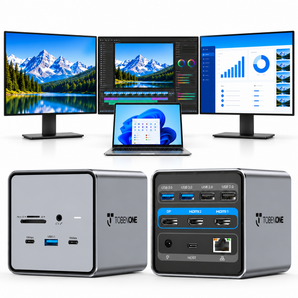
The TOBENONE UDS060 is designed around this idea, offering an 11-in-1 docking solution that helps simplify dual monitor setups while introducing customizable shortcut functionality for a more efficient workflow.

Who Is This Setup For?
A dual monitor workstation is particularly useful for:
Content Creators
Manage editing software, media assets, and communication tools simultaneously.
Remote Professionals
Keep meetings, documents, and workflows organized across multiple displays.
Designers & Developers
Improve efficiency by separating tools, references, and working files.
Business Users
Work with spreadsheets, reports, presentations, and browser-based applications more effectively.
Final Thoughts
A dual monitor setup remains one of the most effective workspace upgrades available today.
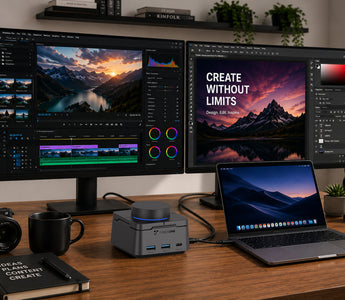
By combining multiple displays with the right docking station, users can create a cleaner desk, reduce cable clutter, and work more efficiently.
As work environments continue to evolve, docking stations are becoming more than connectivity tools—they are becoming productivity hubs designed to help users get more done with less effort.
FAQ
Can a dual monitor docking station support two external displays?
Yes. Most modern dual monitor docking stations support two external displays through HDMI, DisplayPort, or USB-C video outputs. The exact capability depends on both the docking station and the connected laptop.
Do MacBook docking stations support dual monitors?
Yes, many MacBook docking stations support dual monitors. However, display support may vary depending on the MacBook model and operating system. Some models may require DisplayLink technology for extended multi-monitor setups.
Do I need DisplayLink drivers for dual monitors?
Not always. Many Windows laptops can support dual monitors without DisplayLink drivers. However, certain MacBook models and docking station configurations may benefit from DisplayLink software to enable additional display support.
Can a USB-C docking station charge my laptop and connect two monitors?
Yes. Many USB-C docking stations provide Power Delivery (PD) charging while simultaneously connecting dual monitors, peripherals, Ethernet, and other accessories through a single cable.
Recommended Docking Station
Ready to Build a Smarter Dual Monitor Workspace?
The TOBENONE UDS060 combines dual 4K display support, customizable shortcut controls, 100W charging, and versatile connectivity in one compact docking station.
👉 Explore the TOBENONE UDS060 Docking Station