Die Arbeit mit mehreren Anwendungen auf einem einzigen Laptop-Bildschirm kann schnell frustrierend werden. Ob Sie Videos bearbeiten, Tabellenkalkulationen verwalten, an Meetings teilnehmen oder einfach mehrere Browser-Tabs jonglieren, ein Dual-Monitor-Setup ist zu einer der einfachsten Wege geworden, die Produktivität zu steigern.
Heutzutage bauen mehr Fachleute effiziente Workstations, die Laptops mit zwei externen Displays kombinieren und so einen aufgeräumteren und produktiveren Arbeitsplatz für Windows- und Mac-Nutzer schaffen.
Warum immer mehr Fachleute auf Dual-Monitor-Setups umsteigen
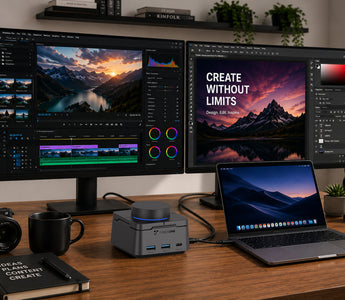
Ein zweiter Monitor ist kein Luxus mehr. Für viele Remote-Mitarbeiter, Designer, Entwickler, Content-Ersteller und Geschäftsleute ist er zu einem wesentlichen Bestandteil ihres täglichen Arbeitsablaufs geworden.
Mit zwei Displays können Nutzer:
-
Kommunikationstools während der Arbeit geöffnet halten
-
Dokumente nebeneinander vergleichen
-
Daten überwachen, während sie Berichte erstellen
-
Inhalte bearbeiten, während sie die Ergebnisse in der Vorschau ansehen
-
Das ständige Wechseln von Fenstern reduzieren
Das Ergebnis ist ein reibungsloserer Arbeitsablauf und ein besser organisierter Arbeitsplatz.
Die gängigen Herausforderungen beim Aufbau eines Dual-Monitor-Arbeitsplatzes
Viele moderne Laptops werden immer dünner und tragbarer, aber dies geht oft zu Lasten der Konnektivität.
Nutzer stoßen häufig auf Probleme wie:
-
Begrenzte Display-Ausgänge
-
Nicht genügend USB-Anschlüsse
-
Mehrere Netzteile, die den Schreibtisch unübersichtlich machen
-
Schwierigkeiten, Peripheriegeräte gleichzeitig anzuschließen
Ohne die richtige Docking-Lösung kann der Aufbau einer aufgeräumten Dual-Monitor-Workstation frustrierend werden.

Was macht eine gute Dual-Monitor-Dockingstation aus?
Bei der Auswahl einer Dockingstation gibt es mehrere wichtige Faktoren zu berücksichtigen:
Dual-Monitor-Unterstützung
Die Dockingstation sollte zwei externe Displays sowohl für die Arbeit als auch für die Unterhaltung zuverlässig unterstützen.
Windows- & macOS-Kompatibilität
Für Nutzer, die mit verschiedenen Geräten arbeiten, ist eine breite Kompatibilität unerlässlich.
Power Delivery-Laden
Eine Dockingstation, die Ihren Laptop auflädt, während sie Peripheriegeräte anschließt, hilft, Kabelunordnung zu reduzieren.
Wesentliche Konnektivität
USB-Anschlüsse, Ethernet, SD-Kartenlesegeräte und Hochgeschwindigkeits-Datentransfer tragen alle zu einem besseren Workstation-Erlebnis bei.
Mehr als Konnektivität: Produktivität zählt
Traditionelle Dockingstationen lösen Konnektivitätsprobleme.
Moderne Fachleute benötigen jedoch mehr als zusätzliche Anschlüsse.
Sie wollen schnellere Arbeitsabläufe.
Hier beginnen produktivitätsorientierte Docking-Lösungen herauszustechen.

Benutzerdefinierte Tastenkombinationen können Nutzern helfen, wiederholte Aktionen schneller auszuführen, darunter:
-
Screenshots aufnehmen
-
Lautstärke anpassen
-
Bildschirm sperren
-
Anwendungen starten
-
Arbeitsablauf-Tastenkombinationen verwalten
Für Content-Ersteller, Designer und Multitasking-Fachleute können diese kleinen Verbesserungen im Laufe eines Arbeitstages erhebliche Zeit sparen.
Ein intelligenterer Arbeitsplatz für Windows- und Mac-Nutzer
Die neueste Generation von Dockingstationen kombiniert:
-
Dual-4K-Monitor-Unterstützung
-
Hochgeschwindigkeits-Datentransfer
-
Power Delivery-Laden
-
Multi-Gerät-Kompatibilität
-
Produktivitätserhöhende Tastenkombinationen
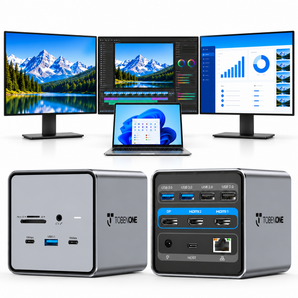
Die TOBENONE UDS060 wurde nach diesem Konzept entwickelt und bietet eine 11-in-1-Docking-Lösung, die hilft, Dual-Monitor-Setups zu vereinfachen, während sie eine anpassbare Tastenkombinationsfunktion für einen effizienteren Arbeitsablauf einführt.

Für wen ist dieses Setup gedacht?
Eine Dual-Monitor-Workstation ist besonders nützlich für:
Content-Ersteller
Verwalten Sie Bearbeitungssoftware, Medieninhalte und Kommunikationstools gleichzeitig.
Remote-Fachleute
Halten Sie Meetings, Dokumente und Arbeitsabläufe auf mehreren Displays organisiert.
Designer & Entwickler
Verbessern Sie die Effizienz, indem Sie Tools, Referenzen und Arbeitsdateien trennen.
Geschäftsleute
Arbeiten Sie effektiver mit Tabellenkalkulationen, Berichten, Präsentationen und browserbasierten Anwendungen.
Abschließende Gedanken
Ein Dual-Monitor-Setup bleibt eines der effektivsten verfügbaren Arbeitsplatz-Upgrades von heute.
Durch die Kombination mehrerer Displays mit der richtigen Dockingstation können Nutzer einen aufgeräumteren Schreibtisch schaffen, Kabelunordnung reduzieren und effizienter arbeiten.
Während sich Arbeitsumgebungen weiterentwickeln, werden Dockingstationen zu mehr als nur Konnektivitäts-Tools – sie werden zu Produktivitätszentren, die entwickelt wurden, um Nutzern zu helfen, mit weniger Aufwand mehr zu erledigen.
FAQ
Kann eine Dual-Monitor-Dockingstation zwei externe Displays unterstützen?
Ja. Die meisten modernen Dual-Monitor-Dockingstationen unterstützen zwei externe Displays über HDMI-, DisplayPort- oder USB-C-Videoausgänge. Die genaue Fähigkeit hängt sowohl von der Dockingstation als auch vom angeschlossenen Laptop ab.
Unterstützen MacBook-Dockingstationen Dual-Monitore?
Ja, viele MacBook-Dockingstationen unterstützen Dual-Monitore. Die Display-Unterstützung kann jedoch je nach MacBook-Modell und Betriebssystem variieren. Einige Modelle benötigen möglicherweise DisplayLink-Technologie für erweiterte Multi-Monitor-Setups.
Benötige ich DisplayLink-Treiber für Dual-Monitore?
Nicht immer. Viele Windows-Laptops können Dual-Monitore ohne DisplayLink-Treiber unterstützen. Bestimmte MacBook-Modelle und Dockingstation-Konfigurationen können jedoch von DisplayLink-Software profitieren, um zusätzliche Display-Unterstützung zu ermöglichen.
Kann eine USB-C-Dockingstation meinen Laptop aufladen und zwei Monitore anschließen?
Ja. Viele USB-C-Dockingstationen bieten Power Delivery (PD)-Laden, während sie gleichzeitig Dual-Monitore, Peripheriegeräte, Ethernet und andere Zubehörteile über ein einziges Kabel verbinden.
Empfohlene Dockingstation
Bereit, einen intelligenteren Dual-Monitor-Arbeitsplatz aufzubauen?
Die TOBENONE UDS060 kombiniert Dual-4K-Display-Unterstützung, anpassbare Tastenkombinationen, 100W-Laden und vielseitige Konnektivität in einer kompakten Dockingstation.
👉 Entdecken Sie die TOBENONE UDS060 Dockingstation